
Dream journal guides
Record dreams with voice input on iPhoneA short morning guide
When typing feels like too much, say where you were and how it felt. Voice input turns a few fragments into text you can keep.
Start with a scene and a feeling
You do not need to organize the whole story before speaking. A few words can be enough. This is a made-up example:
“I was by the sea. The waves were loud. I felt a little scared.”
If a name or place is unclear, say “someone was there” or “an unfamiliar room.” You can edit the text after it appears.
Use voice input in iPhone Notes
You can try voice input in the built-in Notes app without downloading anything.
- Open a new note and tap in the body to show the keyboard.
- Tap the keyboard microphone and say a few words.
- End dictation and read the text. Correct any words or names that were misheard.
If the microphone is missing, check the Dictation setting under Settings → General → Keyboard. The display can vary by iOS version and settings. See Apple’s dictation guide for details.
Tap “Use voice” in DreamVoice
In public version v3.14.0, DreamVoice has its own voice input button in the dream field. It is separate from keyboard dictation.
- Tap “Record a dream” in the timeline.
- Under “Your Dream,” tap “Use voice.” Review any microphone and speech recognition permission prompts shown the first time.
- Describe a scene and a feeling. Your words appear as text.
- Tap “Stop” and read the transcript. Edit any words that were misheard.
- Choose “Save draft” to keep the text. Choose “Call Dream Voice” if you also want an AI reflection.
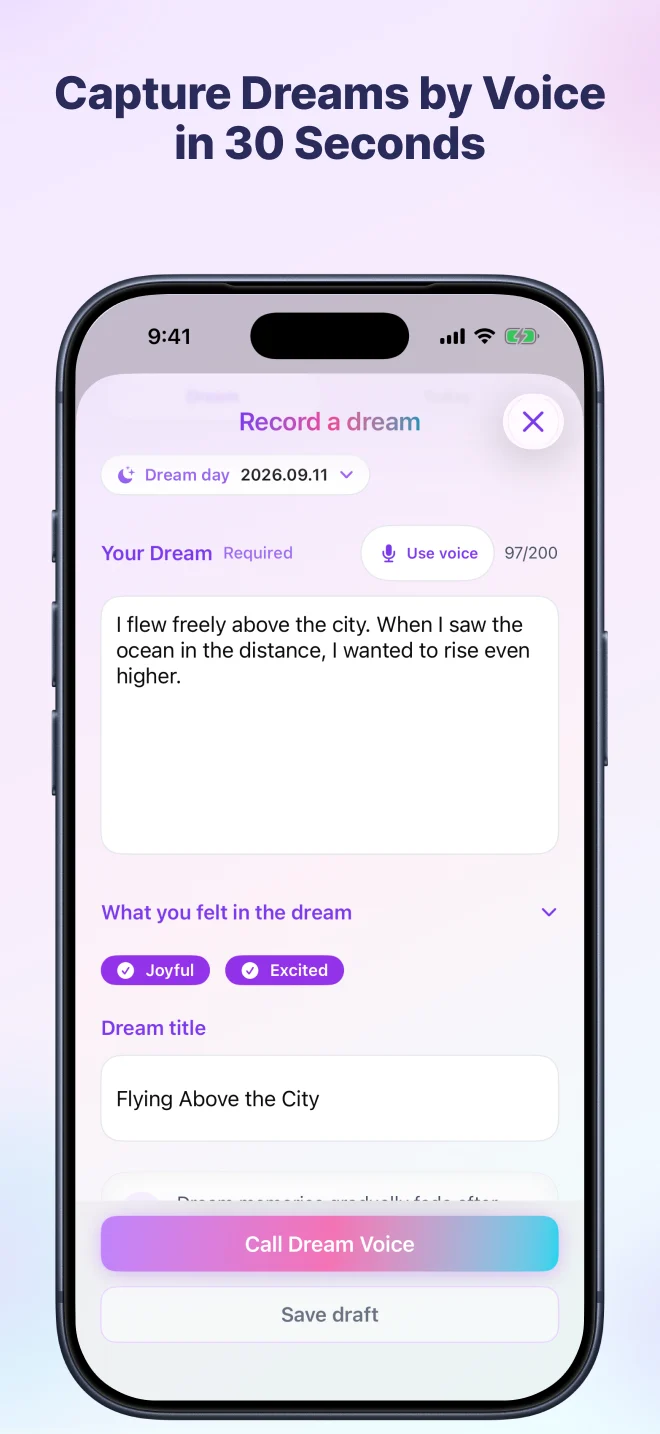
A title and feeling tags can wait. Voice input alone does not save the entry, so finish by choosing a save action.
Audio and saved text are different
DreamVoice uses Apple’s speech recognition to turn speech into text. DreamVoice does not store the recorded audio itself. Audio may be processed on Apple’s servers for speech recognition. Processing is not always confined to your device.
“Save draft” keeps the transcribed text on your device. “Call Dream Voice” sends your dream text and related input to the server for an AI reflection. This feature does not save an audio recording for playback.
See the Privacy Policy for details. AI reflections are prompts for personal reflection. They do not provide a medical or psychological diagnosis or predict the future.
If voice input does not work
- You declined permission: Use DreamVoice’s prompt to open Settings and check microphone and speech recognition permissions.
- No text appears: Check background noise and your connection, then try a short phrase again.
- You cannot speak right now: Type a fragment such as “blue door” or “a familiar feeling.”
If you are unsure what to record, try the dream journal template and examples. It is fine to skip a day when you do not remember a dream.